
Tip: include your product name, 2-4 selling points, brand colors, and the final call-to-action.
claudemotion
Type a request in chat and claudemotion codes a short motion clip from your own slides, figures and photos. Refine it in words, then save an MP4.
All Tools
Discover our comprehensive AI-powered animation toolkit
MiniMax H3
MiniMax H3 AI Video Generator
Seedance 2.5
The Future of AI Video Is Here.
Seedance 2.0
The Future of AI Video Is Here.

Seedance 2.0
The Future of AI Video Is Here.
Gemini Omni
Gemini Omni Video Generator
Image to Video
Generate videos from images
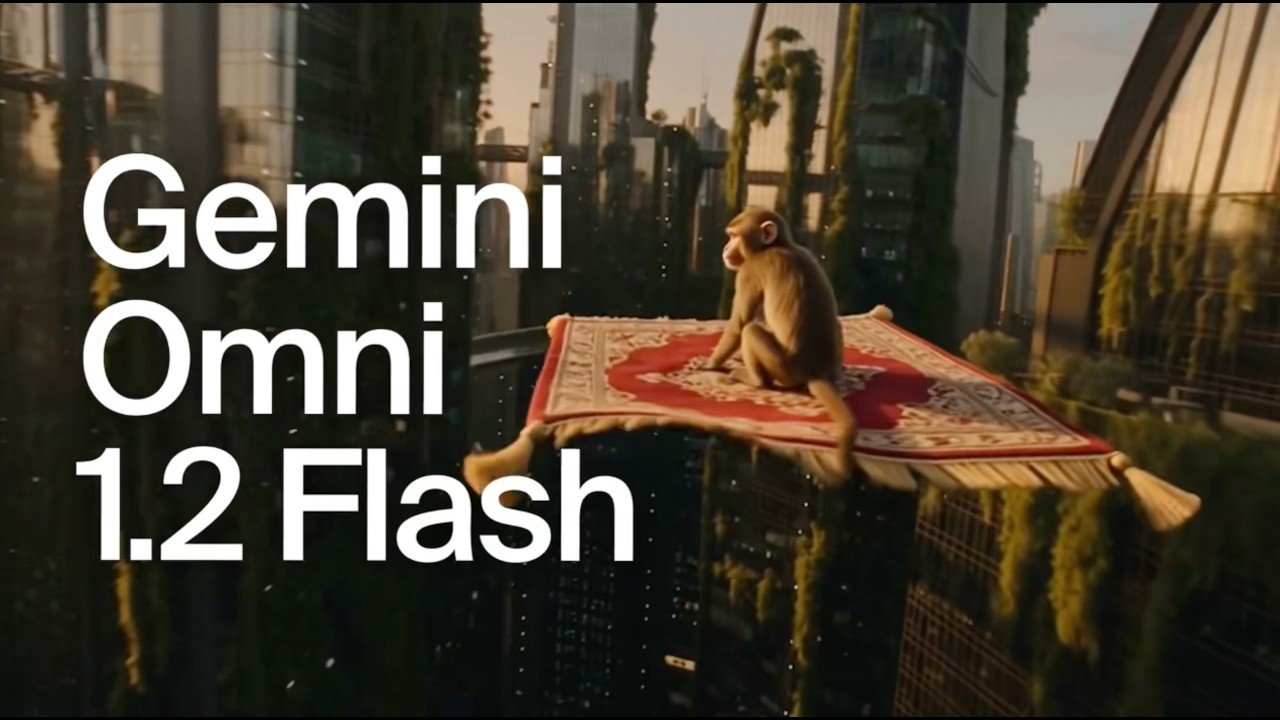
Gemini Omni 1.2 Flash

AI Multi-Scene Shorts Generator
Create viral AI Shorts instantly
A Different Way to Animate: How claudemotion Works
Every frame is generated from code, which lets claudemotion move type, numbers, diagrams and pictures together on a single timeline.
- Animation Assembled From CodeEach claudemotion clip is written as code rather than cut from stock footage, so words, figures, charts and images stay perfectly in step.
- Not a Video ModelDon't expect photoreal people or live-action shots — claudemotion stays with typography, charts, shapes and still pictures.
- Edit One Piece, Leave the RestSwap a single word, number or timing cue and the remaining scenes hold their place in the claudemotion timeline — no rebuild needed.
From a Chat Message to a Finished MP4 in claudemotion
Three short steps, and no timeline software required.
What claudemotion Brings to Your Workflow
Source-grounded prompts, conversational revisions, hands-on editing and admin controls — the pieces claudemotion adds to a shared workspace.
Anchored in Your Source Files
Attach the report, dataset or image set you want claudemotion to work from, then mention the audience, the screen size and the rough runtime.
Conversational Revisions
Treat chat as your edit field: ask for a slower second scene or a corrected Q3 number and claudemotion hands back the updated clip.
Hands-On Editor Access
If you'd rather drag and adjust, open the editor and change the animation directly instead of writing the request out in words.
Clips Live in Artifacts
Finished work never disappears — every claudemotion clip sits in the Artifacts tab alongside your decks, docs and dashboards.
Admin Switches and Role Limits
Find the toggle under Organization settings > Artifacts: enabled by default for Team, disabled for Enterprise, where custom roles can restrict access.
Usage Is Metered
Animations are billed like anything else: claudemotion draws on plan usage, and a long or dense clip costs more than a single message.
claudemotion FAQ: Plans, Output and Exports
Short answers on availability, output style, where clips are kept and how they leave the workspace.
Is claudemotion available on my plan?
It's still in beta: Team workspaces have it enabled by default, while Enterprise owners need to turn it on under Organization settings > Artifacts.
Can claudemotion produce live-action or photoreal video?
No — realistic people and filmed footage are outside what claudemotion does; it animates typography, charts, shapes and still images instead.
Where are my finished clips stored?
In the Artifacts tab, where each claudemotion clip can be reopened and edited again at any time.
What if only a single figure is wrong?
Just edit that word, number or timing beat — the rest of the claudemotion animation stays exactly where it was.
How do clips leave the workspace?
Pick Export, then MP4 to download a file; new claudemotion clips are private by default, and Share lets other people view them.
Are animations counted against my plan limits?
Yes — claudemotion uses plan capacity, and longer or denser animations consume more than a normal message.
Make Your First Motion Clip With claudemotion
Start a chat or open Artifacts, pick the Motion template and say what should move. Admins can switch claudemotion on under Organization settings > Artifacts.